


Ever felt like your iPhone screen is just a bit too big? Maybe it’s trying to take over your life, one app at a time. Whether you’re struggling to reach that elusive corner icon or just want a more manageable display, shrinking your iPhone screen might be the perfect solution.
Understanding iPhone Screen Adjustment
iPhone users often seek ways to modify screen size for enhanced comfort and usability. Adapting screen settings can significantly improve the overall experience.
Importance of Screen Size Adjustment
Adjusting screen size plays a crucial role in enhancing user experience. A smaller screen can reduce eye strain and improve focus, especially for individuals with visual impairments. Various activities become more manageable when content displays at a comfortable scale. For those with limited dexterity, a smaller display area allows easier access to buttons and icons. Customizing the screen helps personalize the device, making navigation smoother and more efficient.
Accessibility Features Overview
Apple prioritizes accessibility with features that aid users in screen adjustment. Zoom lets users magnify specific areas of the screen, improving visibility of text and images. Display settings provide options for text size and boldness, catering to diverse visual preferences. The “Reduce Motion” feature minimizes unnecessary movement, creating a more focused interface, while VoiceOver reads text aloud, allowing for hands-free navigation. These built-in tools ensure iPhones remain user-friendly for everyone, enhancing the overall usability for individuals with different needs.
Methods to Shrink iPhone Screen
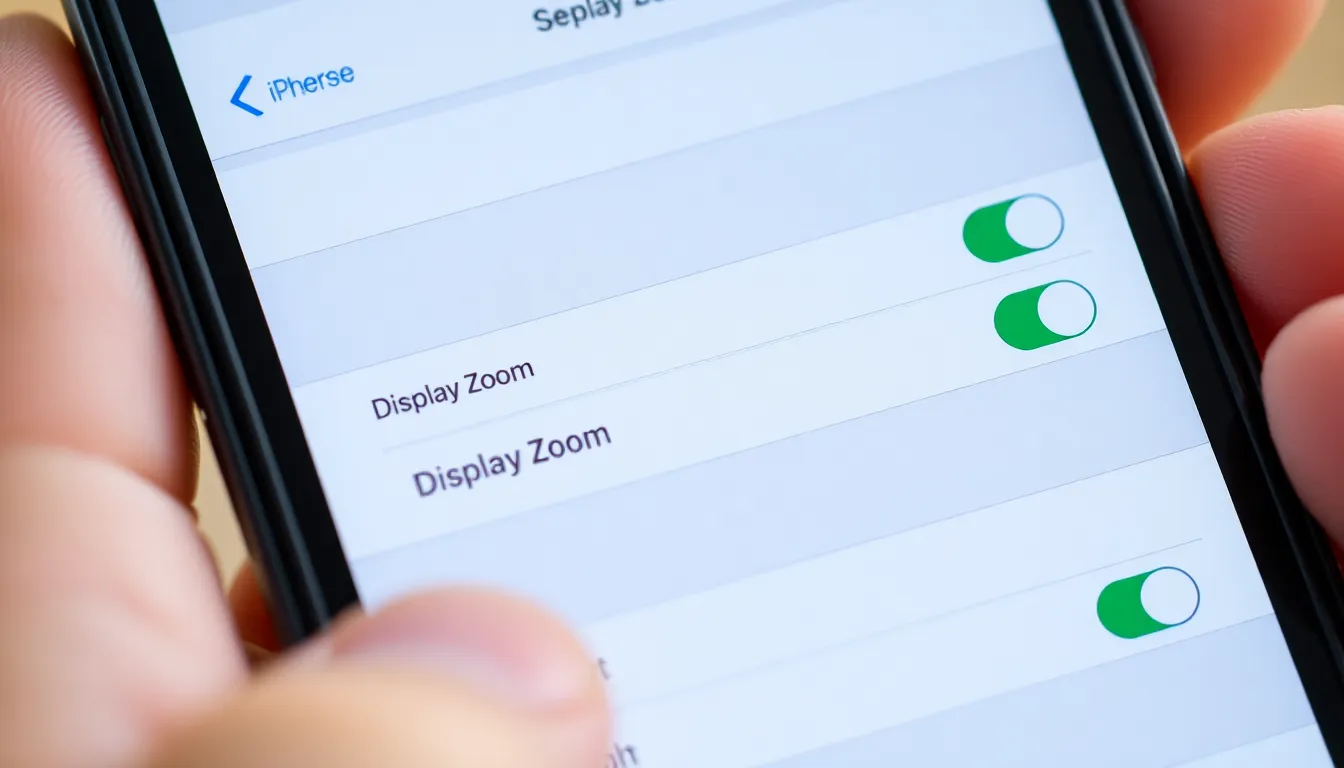
Many users opt to modify their iPhone’s screen size for better accessibility and comfort. Two primary methods allow for screen adjustments: display settings and accessibility options.
Using Display Settings
Users can adjust the screen size through display settings. Navigate to Settings, then select Display & Brightness. From here, choose View under Display Zoom. Options for Standard and Zoomed appear, allowing the selection of a zoom level that suits individual preferences. Tap Set to confirm changes. This adjustment affects app icons and overall interface size, enhancing usability.
Leveraging Accessibility Options
Accessibility options provide additional methods to shrink the screen effectively. Open Settings and select Accessibility. In the Vision section, find Zoom. Activate the Zoom feature to enable a magnification effect. Users can double-tap with three fingers to zoom in or out on specific areas. Adjusting other settings, such as text size and boldness, also improves legibility. These tools cater to various user needs, enhancing interaction with the iPhone.
The Zoom Feature
The Zoom feature provides an effective way to enhance visibility on an iPhone screen. It helps users who may struggle with the standard screen size, particularly those with visual impairments.
Activating Zoom on iPhone
First, access the Settings app to enable this feature. Then, select Accessibility and find the Zoom option under the Vision section. Tapping the Zoom toggle activates the feature, allowing for immediate magnification. Users can double-tap the screen with three fingers to zoom in or out easily. This functionality makes navigation and reading more comfortable.
Adjusting Zoom Settings
Adjusting settings can further refine the Zoom experience. Within the Zoom menu, options allow users to choose the zoom level, enabling a more customized view. The standard setting provides a simple magnification effect, while the “Follow Focus” feature keeps the zoom centered on the user’s action. Users can also decide whether to use the entire screen or a specific window format. Experimenting with these settings brings a tailored experience to individuals based on their unique needs.
Third-Party Apps for Screen Adjustment
Various third-party apps offer additional options for adjusting the iPhone screen size. Users seeking alternatives to built-in settings may find these apps beneficial.
Popular Apps to Consider
- Magnifying Glass + Flashlight: This app allows users to magnify any text or object using their iPhone camera.
- Zoomy: Users can take advantage of its customizable zoom levels to make viewing easier.
- Screen Dimmer: This app not only reduces screen brightness but also allows adjustments to screen size for better visibility.
- Easy Vision: It provides a straightforward interface to change text size and display settings efficiently.
Each app caters to different accessibility needs, enhancing the overall user experience.
Pros and Cons of Using Apps
Using third-party apps for screen adjustment offers notable benefits. These apps often feature extensive customization options, addressing specific user preferences. Some applications are user-friendly, providing intuitive interfaces that simplify adjustments. However, limitations exist. Not every app guarantees compatibility with all iPhone models or iOS versions. Additionally, reliance on third-party software may lead to performance issues depending on app optimization. Users must weigh the convenience of apps against potential drawbacks in usability.
Shrinking the iPhone screen can significantly enhance usability for those who find the default size challenging. By utilizing built-in accessibility features and adjusting display settings users can create a more comfortable experience tailored to their needs.
Third-party apps also offer additional customization options that can further improve interaction with the device. Ultimately the right approach depends on individual preferences and requirements. Embracing these tools ensures that every user can enjoy their iPhone to the fullest, making technology more accessible and user-friendly.