


In a world where every moment deserves to be captured, sharing those memories shouldn’t feel like a high-stakes game of telephone. Whether it’s a family reunion, a vacation with friends, or your dog’s latest shenanigans, creating a shared photo album on an iPhone is the perfect way to keep everyone in the loop—without the hassle of endless group texts or email chains.
Imagine your loved ones effortlessly accessing all those adorable snapshots while you sip your coffee, basking in the glory of your organizational skills. With just a few taps, you can turn your camera roll into a collective treasure trove of memories. So grab your iPhone and get ready to unleash your inner curator—because sharing is caring, and who doesn’t want to be the hero of the family photo saga?
Overview of Shared Photo Albums
Creating a shared photo album on an iPhone allows users to collect memories and foster connections. Photos unite friends and family, creating a shared space for treasured moments. Anyone invited can view photos, leave comments, and even add their own pictures. This collaborative aspect enhances the experience for all participants.
Apple’s built-in Photos app simplifies the album creation process. Users can select images from their library to include. They may choose to invite people through links or by sending invitations directly via iMessage or email. Each participant enjoys the ability to engage with the album as they please.
Notifications keep all members updated on any changes or new additions. These reminders ensure that everyone remains in the loop regarding the shared album’s content. Family events, vacations, or simple gatherings can find a home in this digital format. Sharing becomes effortless, eliminating the need for endless text threads or emails.
Privacy settings empower users to control access. They can allow anyone to view the album or restrict sharing to only selected individuals. This feature provides peace of mind while maintaining the desired level of security.
Each shared album can hold up to 5,000 photos and videos, meeting the demands of even the most prolific photographers. Users can organize content by date, event, or theme, enhancing accessibility and enjoyment. Ultimately, shared photo albums represent a modern solution to maintaining connections through captured moments.
Steps to Create a Shared Photo Album
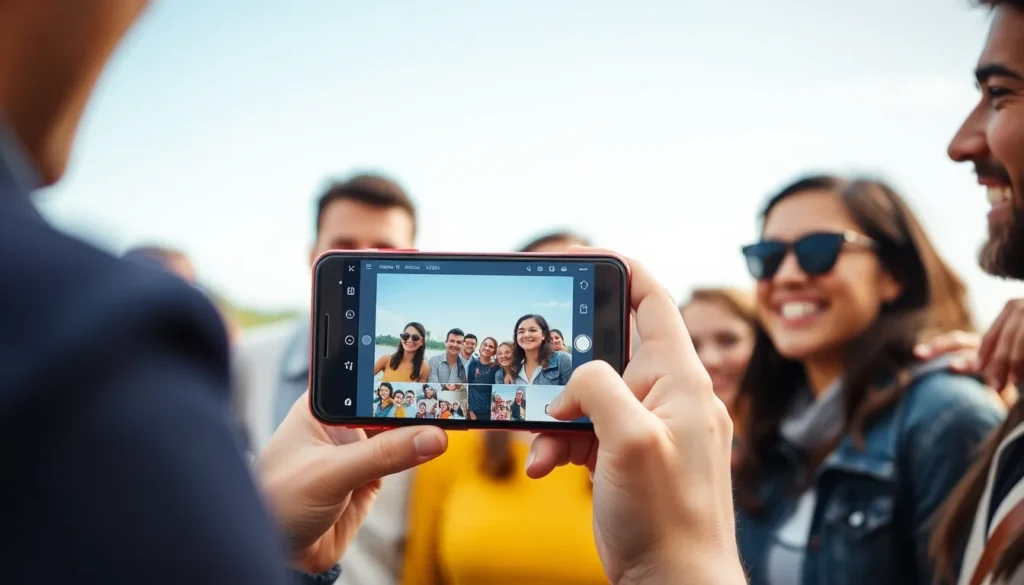
Creating a shared photo album on an iPhone involves a few straightforward steps. Follow these guidelines to establish a collaborative space for memories.
Prerequisites for Creating an Album
Users must have an iCloud account to create a shared photo album. Ensure that the photos app is updated to the latest version for optimal performance. A stable internet connection is also important for seamless sharing. Users should confirm that the iCloud Photos feature is enabled in settings. Finally, participants should have access to devices compatible with iCloud, ensuring they can view or contribute to the album.
Accessing the Photos App
Open the Photos app from the home screen. This app houses all images and videos on the device. Users can find their albums located at the bottom of the screen. Tap on “Albums” to view existing collections. For shared albums, navigate to the “Shared Albums” section. This dedicated space facilitates collaboration among friends and family.
Steps to Create the Album
Begin by selecting “+” to initiate a new shared album. Name the album to identify it easily, then tap “Next.” Users can invite people by entering their email addresses or selecting contacts from their list. After invitations are sent, participants can start adding photos and leaving comments. To finish creating the album, tap “Create,” making the shared space accessible to all invited individuals.
Inviting People to the Shared Album
Inviting others to a shared album enhances the experience by bringing loved ones into the loop. Users can invite participants directly through the Photos app, ensuring everyone feels included in the shared memories.
Sending Invitations via Email
To send invitations via email, users need to access the shared album settings. They can select the “Add People” option, then enter the email addresses of those they wish to invite. Each invitee receives an email with a link to join the album. Email invitations ensure that participants can access the album easily, promoting interaction and engagement. Reviewing the recipient list before sending helps catch any errors or omissions.
Managing Invitations and Access
Managing invitations and access requires users to return to the shared album settings. They can add or remove participants at any time, offering flexibility in managing who views the album. Users also control whether participants can add their own photos and comments. Access settings allow for a seamless sharing experience while maintaining privacy. Regularly checking the album’s participant list helps ensure that only desired individuals have access, promoting a secure and enjoyable sharing environment.
Adding Photos and Comments
Adding photos and comments enhances the shared album experience on iPhone. Users can easily upload pictures and engage with contributors.
How to Add Photos
To add photos, users open the shared album within the Photos app. They tap the “+” icon, choosing photos or videos from their library. Users can select multiple items by tapping each photo they wish to include. Once selections are made, users confirm by selecting “Done.” It’s important to note that each shared album accommodates up to 5,000 photos and videos. Invited participants can also add their own images, keeping everyone connected through their memories.
Leaving Comments and Likes
Commenting on shared photos fosters interaction among participants. To leave a comment, users simply tap on a photo and select the comment icon. Typing thoughts or reactions creates dialogue and makes sharing more enjoyable. Users can also leave likes by tapping the heart icon beneath a photo. This engagement allows participants to express appreciation for each other’s contributions, enhancing the collaborative spirit of the album. Each comment and like contributes to a lively and personal collection of memories.
Managing Album Settings
Adjusting privacy settings allows users to control who accesses their shared albums. Users can limit visibility to only those invited or choose to make the album public. To manage these settings, open the album, tap “People,” then select “Sharing Options.” Here, users can toggle between options for sharing and commenting. This level of control ensures that only trusted individuals view personal photos and videos.
Removing participants keeps shared albums secure and relevant. Users can easily manage their guest list. To remove someone, access the album, tap “People,” then select the name of the participant. A simple tap on “Remove” confirms the action. Following this step, the removed participant no longer has access to the album, maintaining privacy and order in the shared space. Regular updates to the participant list prevent unwanted access.
Troubleshooting Common Issues
Users may encounter some problems while creating or managing shared photo albums on their iPhones. Understanding these issues and their solutions helps enhance the shared experience.
Missing Photos
Photos may not appear in the album despite uploading. This situation often arises from synchronization issues with iCloud. Ensuring the iCloud account is correctly set up speeds up the synchronization process.
Inability to Invite Participants
Users might face challenges when inviting others to a shared album. Confirming the email addresses entered ensures proper invitations. If individuals don’t receive invites, checking the internet connection often resolves the issue.
If Participants Can’t See the Album
Album visibility might not be an issue for some users. Privacy settings could restrict access to selected participants. Adjusting these settings allows invited individuals to view the album without hassles.
Participants Can’t Contribute
Occasionally, invited members may not add photos or comments. Users need to verify permissions assigned to each participant. Allowing contributions enhances engagement and interaction in the album.
Notifications Aren’t Working
Notifications about new updates may not reach users. Ensuring that notifications are enabled in the Photos app settings usually fixes this. Regular updates encourage consistent interaction among participants.
Storage Limit Reached
Users may hit storage caps when attempting to add more photos. The album can hold up to 5,000 items; managing content can help avoid this limit. Deleting older photos or organizing albums can free up space.
Removing a Participant
If a user needs to remove someone, accessing the participant list is the first step. Deleting an individual from this list ensures privacy while maintaining the album’s integrity.
Addressing these common issues enhances the overall experience of shared photo albums, making memory sharing enjoyable and trouble-free.
Creating shared photo albums on an iPhone is a fantastic way to bring family and friends together through cherished memories. This feature not only simplifies sharing but also fosters a sense of community as everyone can contribute and engage with the photos. By taking advantage of the built-in tools and privacy settings, users can ensure a safe and enjoyable experience for all participants.
With the ability to organize content and manage invitations easily, shared albums enhance the joy of capturing life’s moments. Embracing this modern solution allows users to maintain connections and celebrate shared experiences effortlessly. Whether it’s a family vacation or a special event, shared photo albums make memory-sharing a breeze.