
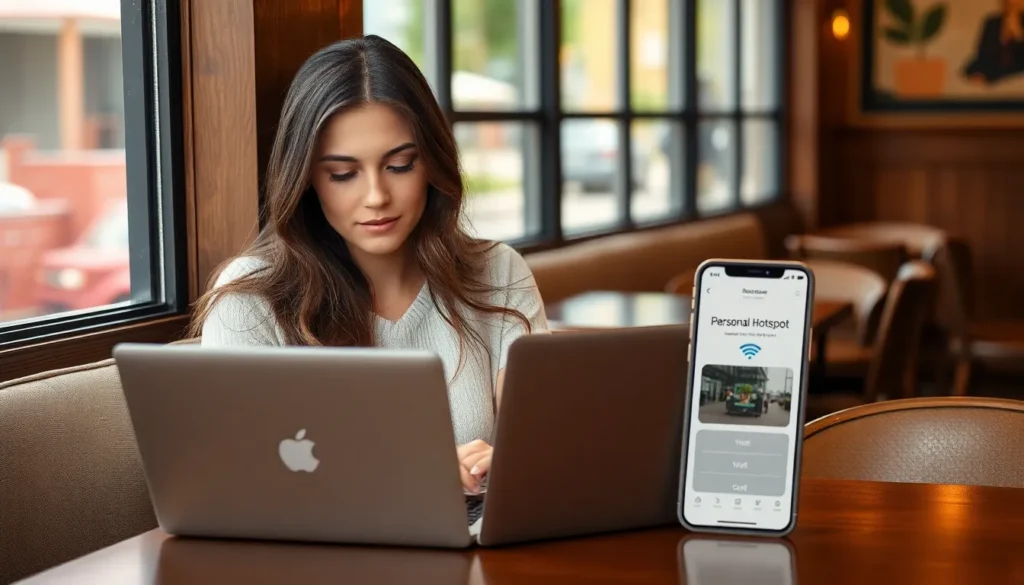

In today’s fast-paced world, staying connected is crucial. Imagine this: you’re at a coffee shop, your laptop’s begging for an internet connection, and your trusty iPhone is just sitting there, a pocket-sized hero waiting to save the day. Tethering your iPhone to your computer can turn that coffee shop into your personal office, complete with a Wi-Fi signal strong enough to stream cat videos without buffering.
Understanding Hotspot Features
Hotspot features on iPhones provide users with the ability to share mobile data with other devices. This feature enables a connection to the internet, allowing seamless work and streaming experiences.
What Is a Hotspot?
A hotspot refers to a device that shares its internet connection. An iPhone can act as a hotspot by using its cellular data to create a Wi-Fi network. Multiple devices, such as laptops, tablets, or other smartphones, can connect to this network. Users can access the internet anywhere there’s cellular coverage, making it a practical solution for on-the-go connectivity.
Benefits of Using a Hotspot
Using a hotspot offers several advantages. Users achieve greater internet accessibility, especially in areas lacking reliable Wi-Fi. Hotspots facilitate secure connections, which can be essential for tasks requiring privacy, such as online banking. Data sharing becomes straightforward; connecting devices like laptops or tablets enhances productivity while traveling. With iPhones supporting multiple connections, friends or colleagues can join the same network for group projects or shared entertainment experiences.
Preparing Your iPhone for Hotspot
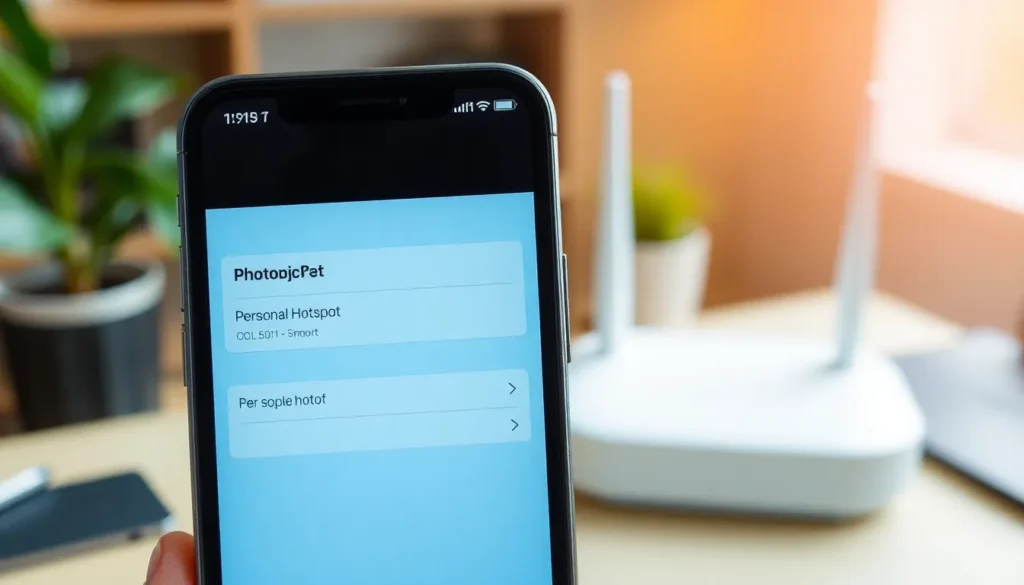
Setting up an iPhone for hotspot usage involves a few essential steps. Users must ensure their device is ready for sharing mobile data effectively.
Checking Your Data Plan
Reviewing a mobile plan prevents unexpected charges. Data sharing isn’t available on all plans, so confirming plan eligibility is crucial. Users need to consult their service provider’s terms for specific details. Unlimited data plans often include mobile hotspot access, while limited plans might impose restrictions. Understanding these provisions helps avoid overages.
Enabling Personal Hotspot
Enabling the Personal Hotspot feature is straightforward. Users navigate to the Settings app, then select Cellular or Mobile Data. Tapping on “Personal Hotspot” activates the feature. It’s important to choose a simple password to secure the connection. After activation, the iPhone creates a Wi-Fi network, allowing computers to connect seamlessly. Users can monitor connected devices directly within this setting. Adjusting settings also lets users customize data sharing preferences to enhance performance.
Connecting Your Computer to the Hotspot
Establishing a connection between a computer and an iPhone hotspot allows uninterrupted internet access. The process varies slightly between Windows and Mac systems.
Steps for Windows Users
First, ensure the hotspot on the iPhone is activated. Open the Wi-Fi settings on the Windows computer. Next, search for available networks and select the iPhone’s hotspot name. Input the password set up on the iPhone for secure access. Lastly, confirm the connection. The system should now be able to use the iPhone’s mobile data.
Steps for Mac Users
Start by confirming the hotspot is enabled on the iPhone. Move to the Wi-Fi icon on the Mac menu bar. From there, choose the iPhone’s hotspot from the list of networks. Enter the password assigned to the hotspot when prompted. After that, the Mac connects to the internet via the iPhone’s mobile network. This setup offers reliable connectivity for various online tasks.
Troubleshooting Common Issues
Connection issues can occur when connecting an iPhone to a computer hotspot. Check if the iPhone’s Personal Hotspot feature is activated. If it’s on but not visible on the computer, restarting both devices often resolves the problem. Additionally, ensure that Wi-Fi is enabled on the computer and forget the hotspot network, then reconnect using the correct password. If the connection is still problematic, verify that the mobile data is active and no airplane mode is enabled.
Speed and performance may vary when using the hotspot. If the connection feels sluggish, check for multiple devices connected to the hotspot. Reducing the number of connections can enhance performance. If the iPhone is far from the computer, moving closer can improve signal strength. Also, heavy usage of bandwidth by certain applications can cause slowdowns. Closing those applications or limiting their background data might help regain speed. Users can also check the cellular signal strength to ensure optimal performance.
Alternative Methods for Internet Sharing
Several alternative methods exist for sharing internet connectivity from an iPhone to a computer. These options include USB tethering and Bluetooth tethering, both effective for providing reliable internet access.
Using USB Tethering
USB tethering connects the iPhone directly to the computer using a USB cable. First, enable the Personal Hotspot feature on the iPhone. Then, connect the iPhone to the computer via USB. The computer detects the iPhone as a network connection. Upon connection, the internet connection is available to the computer instantly. Users appreciate this method for its stability and often faster speeds compared to wireless connections. This option also charges the iPhone while in use, ensuring that the device remains powered throughout the session.
Bluetooth Tethering
Bluetooth tethering offers an alternative for internet sharing without physical connections. First, turn on Bluetooth on both devices. Then, enable the Personal Hotspot on the iPhone. Next, pair the iPhone and the computer through their respective Bluetooth settings. Once paired, users can access the internet from the computer via the iPhone’s hotspot connection. This method is beneficial for users needing a quick and cable-free solution. However, users may experience slower speeds due to the limitations of Bluetooth technology.
Tethering an iPhone to a computer offers a practical solution for staying connected in various situations. Whether at a coffee shop or on the go users can rely on their iPhone’s hotspot feature for a secure and reliable internet connection.
By following the steps outlined for enabling the Personal Hotspot and connecting devices users can easily access the internet without interruptions. Troubleshooting common issues ensures a smooth experience while alternative methods like USB and Bluetooth tethering provide additional flexibility.
With these tools at their disposal users can enhance productivity and enjoy seamless online activities wherever they are.