

In today’s screen-dominated world, staring at your iPhone can feel like a workout for your eyes. If you’ve ever experienced that late-night glare that makes you question your life choices, you’re not alone. Thankfully, there’s a superhero feature lurking in your device— the blue light filter. This nifty tool can save your peepers from the harsh glow of your screen and help you sleep like a baby instead of tossing and turning.
Understanding Blue Light and Its Effects
Blue light originates from various sources, including smartphones, tablets, and computers. Exposure to this type of light can lead to digital eye strain, characterized by symptoms such as dryness, irritation, and blurred vision. Studies indicate that prolonged exposure to blue light disrupts sleep patterns, affecting overall sleep quality.
Devices emit blue light in significant amounts, especially during the evening. Research shows that this exposure can hinder melatonin production, a hormone crucial for regulating sleep. Many individuals experience difficulty falling asleep or maintaining restful sleep due to blue light intrusion.
Different wavelengths of light impact the eyes differently. The short wavelengths associated with blue light penetrate deep into the eye, potentially leading to retinal damage over time. Maintaining eye health requires limiting exposure to these harmful wavelengths, especially during nighttime activities.
Options exist for reducing the effects of blue light. Enabling a blue light filter on an iPhone or using specialized glasses can reduce exposure. These solutions decrease glare and enhance comfort while using devices, especially before bedtime.
Experts recommend taking regular breaks from screens to mitigate digital eye strain. The 20-20-20 rule serves as a practical reminder: every 20 minutes, look at something 20 feet away for at least 20 seconds. Practicing this simple habit contributes to better eye health and a more comfortable digital experience.
How to Access the Blue Light Filter on iPhone
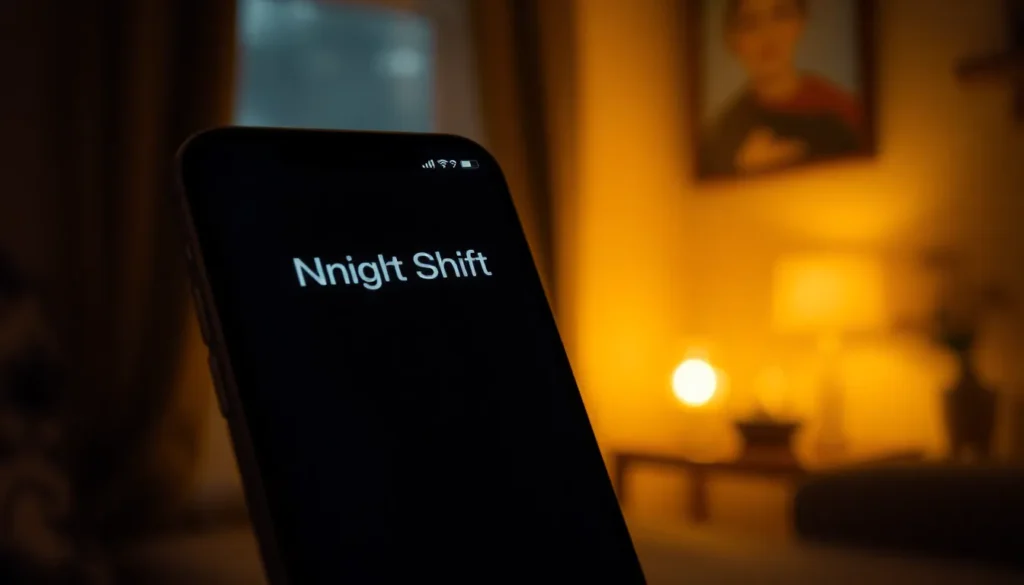
Accessing the blue light filter on an iPhone enhances visual comfort, especially during evening usage. The filter reduces the blue light emitted from the screen, promoting better sleep quality.
Using Night Shift
Night Shift adjusts the display’s colors based on the time of day. This feature automatically shifts colors to warmer tones during night hours. To enable it, navigate to Settings, then tap on Display & Brightness. Look for Night Shift and choose Enable Until Tomorrow or set a custom schedule. Users can also adjust the warmth of the colors by dragging the slider. Activating Night Shift significantly decreases blue light exposure, helping reduce eye strain.
Enabling True Tone
True Tone helps improve viewing experiences by adjusting the display color based on the ambient light. This feature automatically makes images appear more natural in various lighting conditions. Check if your iPhone supports True Tone by going to Settings, then Display & Brightness. Locate the True Tone toggle and switch it on. Enabling this feature optimizes the display, making it easier on the eyes and reducing discomfort caused by harsh lighting.
Third-Party Apps for Blue Light Filtering
Numerous third-party apps offer effective blue light filtering options for iPhone users. Popular apps include f.lux, Twilight, and Night Owl. Each of these applications provides customizable settings to help reduce blue light exposure based on user preferences.
f.lux adjusts your screen’s color temperature according to the time of day. Transitioning to warmer colors in the evening offers a more comfortable viewing experience. Users often appreciate the app’s ability to schedule shifts automatically, enhancing nighttime usability.
Twilight focuses on optimizing screen brightness and color temperature during low-light conditions. Its intuitive interface allows easy adjustments, ensuring that users can set the app according to their needs. Many users find it beneficial for reducing eye strain when reading in bed.
Night Owl presents an alternative with its easy-to-use interface. Users can quickly access color temperature settings to tailor the filtering effect. This app also offers a night mode feature, which aids in minimizing unwanted light emission during late-night hours.
App Store reviews highlight the effectiveness of these third-party options. Many users report noticeable improvements in their sleep quality after integrating these blue light filters into their digital routines. Installing an app can be a practical solution for those who seek more control over their screen time and eye health.
Before downloading, be sure to check compatibility with your iPhone model. Testing different apps can help determine which best suits individual preferences. Maintaining eye comfort can be achievable with the right blue light filtering app.
Tips for Effective Usage
Adjusting the Night Shift settings enhances its effectiveness. Access the settings by going to Display & Brightness, then tapping on Night Shift. Users can customize the color temperature, selecting a warmer tone that feels comfortable for their eyes.
Utilizing True Tone alongside Night Shift can improve visual comfort. True Tone automatically adjusts the display based on surrounding light conditions, creating a balanced viewing experience. This feature reduces eye strain by ensuring colors appear consistent under different lighting.
Taking breaks during screen use is crucial. Following the 20-20-20 rule helps maintain eye health. After every 20 minutes of screen time, focus on an object at least 20 feet away for 20 seconds.
Testing third-party apps can provide additional filtering options. Apps like f.lux, Twilight, and Night Owl offer customizable settings based on time and lighting conditions. Reviews indicate these tools lead to better sleep quality for many users.
Configuring the blue light filter before bedtime maximizes its benefits. Setting a schedule for Night Shift ensures it activates automatically in the evening. This proactive approach reduces blue light exposure and supports healthier sleep patterns.
Monitoring symptoms of digital eye strain assists in adjusting settings. If users experience dryness or blurred vision, modifying brightness or implementing software filters can help. Listening to one’s body leads to better eye care and comfort during device use.
Sticking to consistent screen time limits promotes healthier habits. Establishing boundaries around device usage, especially in the evening, fosters better sleep hygiene. Enhanced awareness of screen time contributes to overall well-being.
Implementing a blue light filter on an iPhone can significantly enhance eye comfort and improve sleep quality. By utilizing built-in features like Night Shift and True Tone users can effectively reduce blue light exposure during evening hours. Third-party apps also offer customizable options for those seeking additional control over their screen settings.
Adopting these practices not only alleviates symptoms of digital eye strain but also encourages healthier screen time habits. Regular breaks and mindful usage are essential for maintaining eye health in today’s digital age. With the right adjustments and tools users can enjoy their devices while protecting their vision and promoting better sleep.